Tesla Autopilot Unavailable? 9 Fixes That Actually Work (2026)
Seeing "Autopilot Unavailable" or "Cruise Control Unavailable" on your Tesla's screen is frustrating, especially when you rely on these features for highway driving. The good news is that most causes are temporary and can be resolved without a service visit.
This guide covers every common cause and fix — from a 30-second camera wipe to diagnosing hardware failures that need Tesla Service.
Why Autopilot Becomes Unavailable
Tesla's Autopilot system relies on a suite of cameras, neural networks, and onboard processors to function. Since Tesla transitioned to a vision-only system (removing radar and ultrasonic sensors), the cameras are more critical than ever. When any camera or processing component is compromised, the system disables itself for safety.
Common Causes
- Camera calibration needed — After windshield replacement, service, or a software update
- Weather conditions — Rain, fog, snow, or ice blocking camera lenses
- Dirty cameras — Road grime, salt spray, or bug splatter on lenses
- Software glitches — Temporary system errors after updates
- Hardware problems — Camera module failure or cable disconnection
- Overheating — Autopilot computer throttling in extreme heat
- Windshield issues — Aftermarket glass, tint, or damaged area near cameras
Quick Fixes to Try First
1. Clean All Camera Lenses
This is the #1 fix — and the most overlooked. Tesla vehicles have 8 cameras that Autopilot relies on:
- Front-facing (3 cameras) — Behind the windshield, above the rearview mirror
- Side repeater cameras (2) — Built into the front fenders
- B-pillar cameras (2) — In the door pillars, behind windows
- Rear camera (1) — Above the license plate
How to clean them properly:
- Use a clean, soft microfiber cloth — never paper towels or dry rags
- Spray glass cleaner on the cloth, not directly on the camera
- Gently wipe each lens in a circular motion
- Pay special attention to the fender cameras — they collect the most road grime
- Check for water spots, oil film, or dried salt residue
- In winter, remove ice carefully — don't scrape near lenses
2. Perform a Scroll Wheel Reboot
A soft reboot clears temporary software glitches — this resolves the issue about 30% of the time:
- Park your Tesla safely (put it in Park)
- Press and hold both scroll wheels on the steering wheel for 10-12 seconds
- Release when the touchscreen goes dark
- Wait 2-3 minutes for the system to fully restart
- The Tesla logo appears, then the main screen loads
- Drive for a few minutes — Autopilot may recalibrate automatically
3. Full Power Cycle (Hard Reset)
If the scroll wheel reboot doesn't work, try a full power cycle:
- Park and close all doors
- Go to Controls > Safety > Power Off
- Don't touch anything — no pedals, no doors, no screen — for at least 5 minutes
- Press the brake pedal to wake the car
- Test Autopilot on a highway
A power cycle resets the Autopilot computer (Hardware 3/4) and clears deeper software issues that a soft reboot misses. If your screen was frozen or unresponsive, this is often the fix.
4. Check Weather and Driving Conditions
Autopilot will disable itself in poor visibility conditions. This is normal and expected:
- Heavy rain — Water droplets on camera lenses
- Snow or ice — Lenses blocked or covered
- Dense fog — Insufficient contrast for lane detection
- Direct low sun — Glare washing out front cameras
- Extreme darkness — Insufficient lighting for cameras (rare on highways with lane markings)
- Dusty or muddy roads — Constant lens contamination
If the weather is the cause, the "Autopilot Unavailable" message usually disappears once conditions improve and lenses are clean.
Camera Calibration Issues
After Windshield Replacement
If you recently had your windshield replaced, camera recalibration is required. Here's what to expect:
- Calibration requires 20-100 miles of driving
- Drive on well-marked highways with clear lane lines (not city streets)
- Process typically takes 1-3 hours of highway driving
- Each camera calibrates independently — you can track progress on screen
- Avoid driving in rain or at night during calibration
Critical: Use a Tesla-approved OEM windshield. Aftermarket glass with different tint levels or thickness can cause persistent calibration failures because the camera optics are tuned for specific glass properties.
Force Recalibration
If calibration seems stuck (no progress after 50+ miles), force a reset:
- Go to Controls > Service > Camera Calibration
- Select Clear Calibration
- Drive on a highway with clear, well-painted lane markings
- Monitor progress under Controls > Service
For a detailed walkthrough, see our camera calibration guide.
Software-Related Causes
After a Software Update
Autopilot issues commonly appear after Tesla software updates. The neural networks may need to reinitialize:
- Check for a newer update — Tesla sometimes pushes hotfixes for known issues
- Perform a full power cycle (see above) after any major update
- Drive for 30-50 miles on highways to allow re-adaptation
- Allow 24-48 hours for background processes to complete
- If the update appears stuck or stalled, schedule a service appointment
Bug Reports
Help Tesla identify and fix issues by filing bug reports:
- While driving (safely), press the voice command button on the steering wheel
- Say "Bug report, Autopilot unavailable" followed by a brief description
- Tesla collects camera snapshots, logs, and sensor data from that moment
- Reports help identify patterns across the fleet
Hardware Problems
Signs of Camera Hardware Failure
If cleaning and rebooting don't help, you may have a hardware issue:
- Single camera consistently offline — Usually a cable or module failure
- "Camera blocked or obstructed" in perfect weather — Possible internal fogging or lens damage
- Autopilot worked, then suddenly stopped — Connector or wiring issue
- Multiple cameras failing simultaneously — Autopilot computer (MCU/HW3/HW4) issue
For side repeater camera replacements or rear camera problems, check our dedicated guides.
Autopilot Computer Overheating
In hot climates (above 40°C/104°F), the Autopilot computer can throttle or shut down:
- Park in shade or use Camp Mode to keep the cabin cool
- Cabin overheat protection helps but doesn't fully prevent computer throttling
- The issue resolves once the car cools down
- Persistent overheating may indicate a cooling system issue — check for coolant problems
When to Schedule Tesla Service
Contact Tesla Service if:
- Cameras remain unavailable after cleaning, rebooting, and power cycling
- Calibration shows no progress after 200+ miles of highway driving
- You see a hardware error message on the touchscreen
- Autopilot was working fine and suddenly stopped permanently
- Multiple cameras show offline simultaneously
- The issue returns immediately after every reboot
Preparing for Your Service Appointment
To help Tesla diagnose faster:
- Note when the issue started (date, mileage, after an event?)
- Document any recent changes (windshield replacement, collision repair, service)
- Take screenshots of error messages (hold the dashcam save button for screenshots)
- Record which specific cameras show problems
- Check if the issue is intermittent or constant
Prevention: Keep Autopilot Working Reliably
- Clean cameras weekly — More often in winter, rainy, or dusty conditions
- Install software updates promptly — They often include Autopilot improvements
- Protect your windshield — Chips near the camera cluster can affect calibration. Consider paint protection film for the front end
- Use OEM parts — Aftermarket windshields, cameras, or connectors can cause Autopilot issues
- Monitor camera views — Periodically check each camera feed via the dashcam viewer to spot issues early
Most Autopilot unavailability issues resolve with a camera cleaning and reboot. Try the simple fixes first — you'll often save yourself a trip to Tesla Service and get back to hands-free highway driving in minutes.
Related Guides
- Camera Calibration Guide — Full walkthrough for recalibrating cameras
- Vision vs. Radar: Tesla's Camera-Only System — Why cameras matter more than ever
- Phantom Braking Fix — Related Autopilot behavior issues
- Side Repeater Camera Replacement — DIY camera hardware repair
- Rear Camera Blurry or Not Working — Fix degraded camera quality
- Screen Frozen or Black — Reboot procedures that also fix Autopilot
- Software Update Features (2026.2.3) — Latest update changes
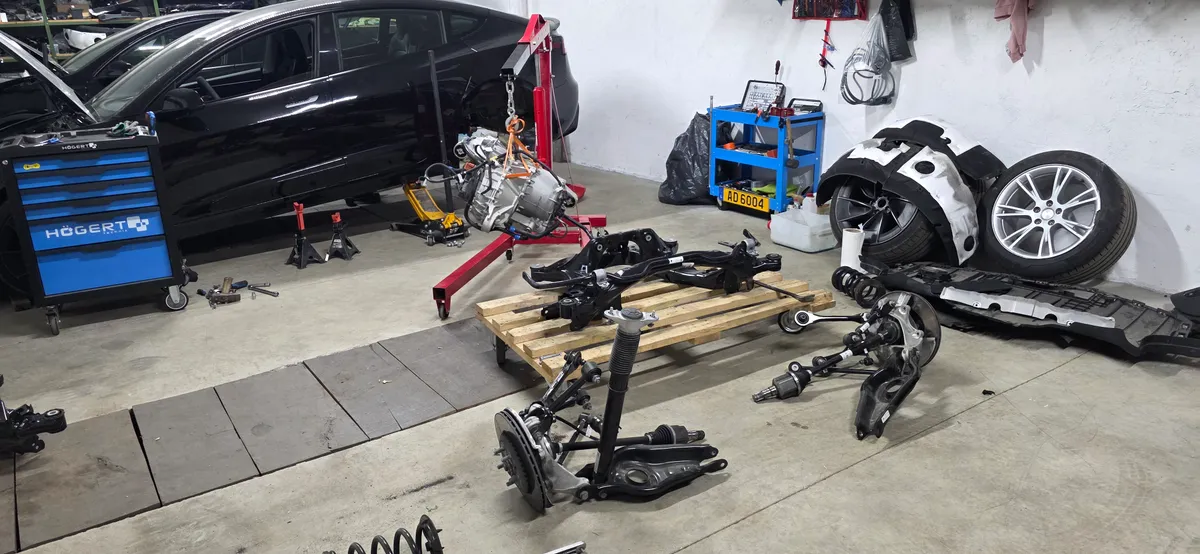
🛠️ Tools Needed for This Repair
These are the tools I personally use and recommend. Using quality tools makes the job easier and safer.
We earn commissions from qualifying purchases through our affiliate partners. This helps support the site at no extra cost to you.